
A generated clip usually comes back soft: 720p, a little smeared in motion, fine texture averaged away. The obvious fix is an upscaler, and the obvious settings are the biggest ones on the menu. On AI footage those are exactly the settings that give it away. More pixels and more frames do not only sharpen the detail you want; they also resolve the artefacts the soft version was hiding.
This note is built on SYNTX.AI’s free Academy, where the team behind that platform tests both Topaz tools it hosts on realistic and animated clips and publishes the settings. We did not repeat their Topaz runs. Below their findings and prices, we show two upscales from our own projects: a book montage finished through Higgsfield’s UI, and a talking-head clip enhanced with ByteDance Video Upscale through its tool API.
Two Topaz tools, two different jobs
Topaz AI (Proteus, Iris, Rhea, Gaia) improves what is already in the frame: it removes noise and compression blocks, sharpens edges and restores detail that is present but degraded. Topaz Astra is generative: it draws in detail that was never there. The SYNTX course sums it up in one line — the regular one suits live action, Astra suits generated content.
That difference decides the result. On an AI-generated animated short, Proteus v4 made the picture much sharper and the existing flaws far more noticeable with it. Astra in Precise 2.5 mode sharpened the characters, kept the background in a light haze and made the motion smoother without a plasticine look. It was the best of the four they tried.
Precise 2.5 against Creative
Astra has four modes. Two matter:
- Precise 2.5 keeps the clip as close to the original as possible. It is the mode to start with, and it did well on both a realistic advert and an animated one.
- Creative adds and stylises. At maximum strength on a realistic close-up of a woman’s face, the clip turned almost fairy-tale-like and slightly blurry, small details became overstated, and the face distorted in many frames. On the animated clip (a samurai cat in a bamboo forest) the same mode was fine: richer detail, softer light, a few distorted frames.
So Creative belongs to stylised or animated sources, at low creativity, and mainly when the source looks plastic and uniform to begin with. On a real face, or a realistic generated one, use Precise 2.5 with Creativity set to Low.
The 4K and 60 fps trap
Two findings from those lessons point the same way. Upscaling the animated clip to 4K made its AI origin more apparent. And in the course’s final polish step, the presenter deliberately left the frame rate alone: going to 60 fps “sometimes emphasises the AI-generated nature of the video more strongly, bringing out the flaws that are already there”.
For a vertical reel that will be watched on a phone, 1080p at the source frame rate is the sensible ceiling. Push past it only after comparing a 1:1 crop of the faces and the fine texture against the source — the same check we use for every restyle before calling it done.
Which to pick
| What you have | Start with | Then try | Avoid |
|---|---|---|---|
| Camera footage, old or compressed video | Topaz AI, Proteus v4 | Iris v3 if faces matter; Rhea if shot in low light | Astra Creative |
| Realistic AI-generated clip | Astra Precise 2.5, Creativity Low, 1080p | Astra Precise (previous version) | Creative at high strength, 4K, 60 fps |
| Animated or CGI clip | Astra Precise 2.5 | Topaz AI Gaia CG v5; Astra Creative at low strength | Proteus, which sharpens the flaws too |
| Footage that is already good, AI or not, and only needs resolution | Topaz AI Gaia HQ v5 | Astra Precise 2.5 | Heavy sharpening |
Starting values for Topaz AI
The SYNTX team say there is no universal setting, but publish a combination that noticeably improves most footage without overdoing any one parameter: Fix Compression 8, Improve Detail 60, Sharpen 50, Reduce Noise 70, Dehalo 8 and Anti-alias/Deblur −30. They raise the frame rate to 60 for camera footage; for AI footage, leave it.
Limits
- Both Topaz tools on that platform take clips of at most 25 seconds. Longer cuts go in pieces.
- Topaz AI upscales at most 2×. A 720p clip reaches 1440p, not 4K, in one pass.
- Astra’s Fast mode exists for quick, cheaper previews; it is not what the comparisons used.
What it costs there
SYNTX.AI charges in tokens; its purchase screen showed €0.0233 to €0.0259 per token, so at €0.025 a token 100 tokens is about €2.50. The prices below were read off the Upscale button in the lesson videos. The clip lengths were not shown, so these are prices per clip, not per second.
| Tool and settings | Clip | Tokens | About |
|---|---|---|---|
| Astra Precise 2.5, 1080p, 30 fps | Short realistic advert | 90 | €2.25 |
| Astra Precise 2.5, 1080p, 30 fps | Short animated clip | 99 | €2.48 |
| Astra Precise 2.5 | Animated short, about 15 s | 135 | €3.38 |
| Astra Creative, 1080p, 30 fps | Short realistic advert | 36 | €0.90 |
| Topaz AI, Proteus v4 | Short clip | 0 shown | — |
Precise costs more than twice as much as Creative for the same clip, which is worth knowing before testing Creative “because it is cheaper”. The zero on Topaz AI is what the button displayed; the platform’s Pro plan lists Topaz video enhancement as included, which is the likely reason, but we have not confirmed it.
Evidence
- Date
- Lessons published 17 August to 2 October 2026
- Basis
- Vendor: SYNTX.AI Academy lesson videos and their on-screen token prices
- Measured
- Nothing by us. Quality judgements are the SYNTX presenters’, on their own example clips
- Caveat
- One vendor’s tests on a handful of clips; prices are that platform’s resale prices, with clip lengths not shown
Two upscales from our own projects
These are matching frames from the actual input and output videos, shown at the same display size. The book pair preserves the full outdoor shot within the montage; the talking-head pair preserves the complete portrait frame. The source is resized to the output canvas, so a larger image alone cannot make the after look better. The book frames match 00:39.76 in the edited source with 00:39.90 in the assembled output.
Book montage: enhancement through the Higgsfield UI
After the book replacements, the montage still had soft faces, hair and cover detail. We split it into short segments, enhanced them through Higgsfield’s UI, and assembled the 1080p Pro outputs into the finished film. The face, hair, tree emblem and surrounding foliage are more defined after the pass. Fine cover lettering is still unreliable: sharper does not automatically mean faithful.
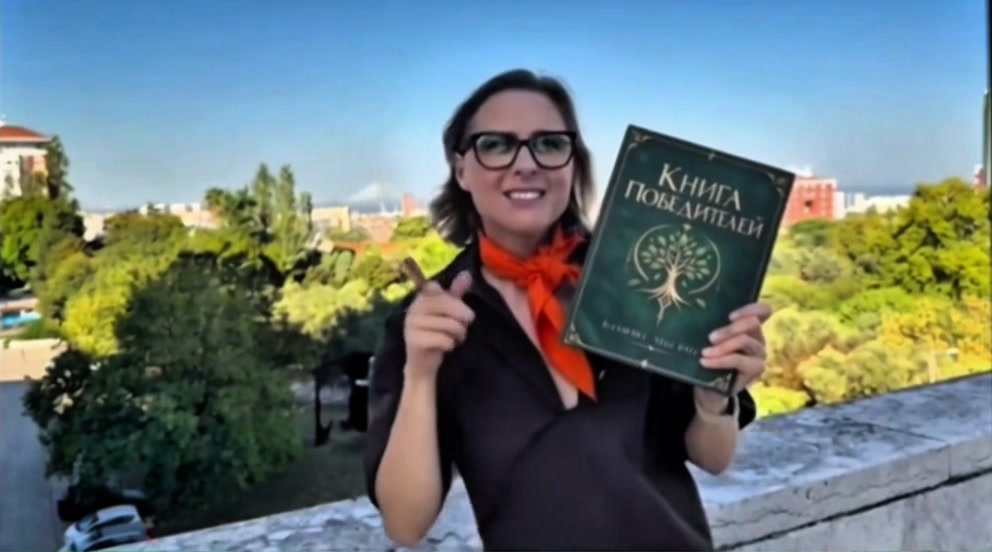
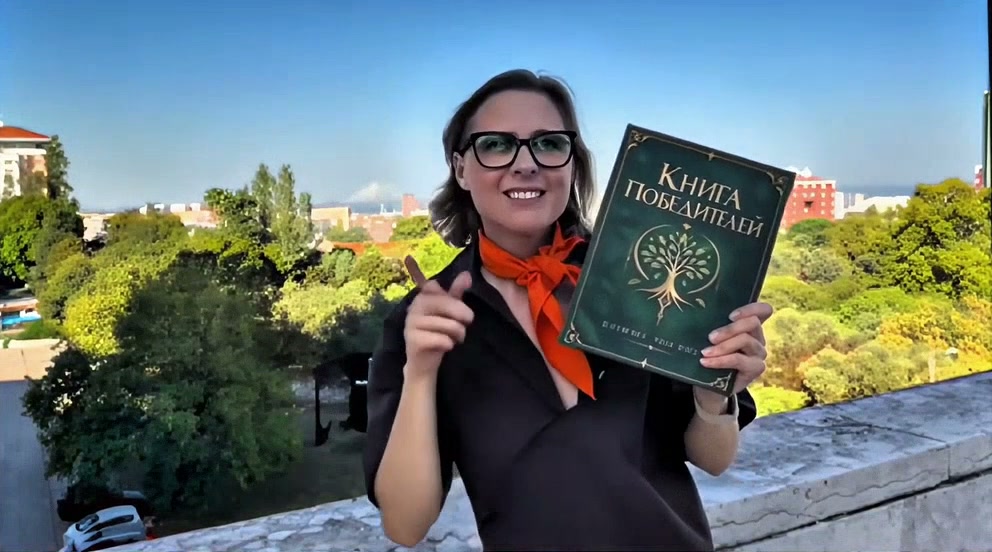
The input was already exported in a 4K container, but its smaller inserts were still soft. This example shows enhancement of that detail, rather than an increase in the master’s pixel count. The saved outputs identify the Pro pass; the exact engine selected in the UI was not recorded.
ByteDance Video Upscale: a talking-head clip through the API
Higgsfield also offers ByteDance Video Upscale, with Standard and Pro versions and presets for different footage types. This is an additional enhancement tool to compare with the Topaz options above.
For a talking-head regeneration, Claude submitted the five-second Genjutsu result through Higgsfield’s tool API with Pro quality, the AI-generated-footage preset, 1080p, and 24 fps. The saved input is 720 × 1280; the output is 1080 × 1920 and keeps the same 24 fps and duration. The full frames below show the face, hair, jacket and room together.
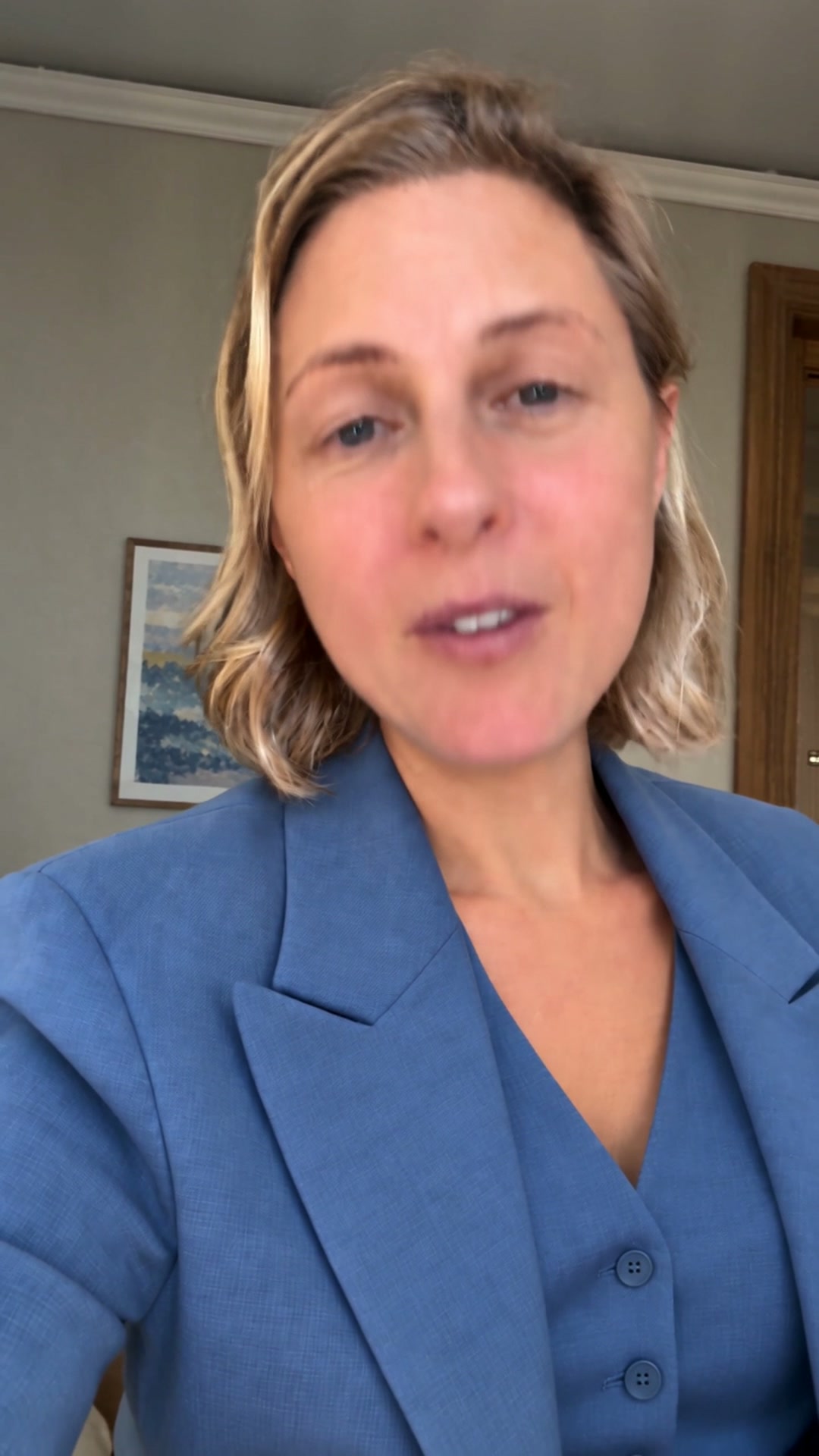
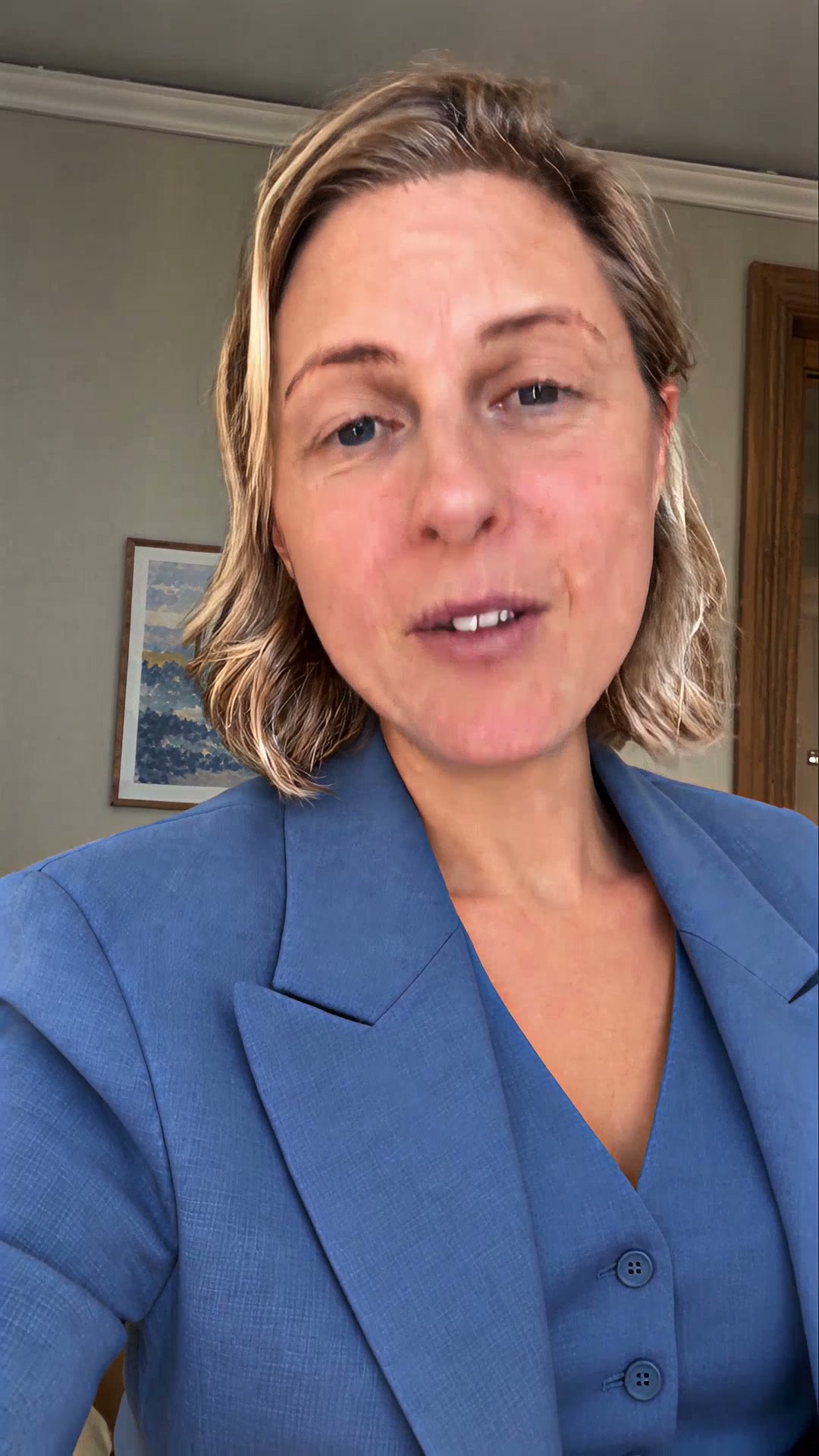
The result adds visible texture, but that texture is reconstructed, not proof that the source contained it. It also keeps the room and blazer from the Genjutsu edit; enhancement cannot fix an earlier edit that changed the wrong thing. The talking-head comparison shows that separate problem.
Evidence from our projects
- Date
- Book outputs saved 17 September 2026; ByteDance run completed 2 October 2026
- Basis
- Observed input and output files; recorded ByteDance request and completion; the book’s UI route confirmed by the maker
- Measured
- Book: 3840 × 2160 at 50 fps input, 1920 × 1080 at 30 fps Pro output. Talking head: 720 × 1280 to 1080 × 1920, both 24 fps and 5.04 seconds
- Caveat
- Two project examples, not a controlled ranking. The book’s exact UI engine is unrecorded. Still frames show detail, not temporal consistency; no reconciled upscale cost is available
Before keeping an upscale
- Decide what the clip is: camera footage, realistic AI or animation. That picks the tool, not the brand name.
- Start with restrained settings — Proteus for camera footage, Astra Precise 2.5 with low creativity for AI footage. ByteDance Pro with the AI-generated preset is another option, as the talking-head example shows.
- Stay at 1080p and the source frame rate for a reel.
- Crop the faces and the finest texture at 1:1 against the source. If the upscale invented skin, hair or text, go back a step rather than forward.
Sources
- SYNTX.AI Academy: “How to enhance the quality of any video” (Topaz AI), “How to improve video quality and detail” (Topaz Astra), and lesson 7 of “How to Create an Animated Film”
- Higgsfield AI Video Upscaler: ByteDance and Topaz engines, footage presets, and Standard/Pro options
Polish without the giveaway
Enhancement is one step in a workflow, not a button. easyai.video picks the step by what the footage is, and checks the faces before anything is kept.
Join the waitlist ↗